Display Stock Tracking
The Display Stock Tracking feature provides business owners with the ability to clearly identify specific stock designated as ‘Display’ within System Five™. This is accomplished by creating a specific part in System Five™ Inventory for each display item. These parts become easily recognizable on invoices, distinguishing them from regular boxed stock.
TABLE OF CONTENTS
By making display parts visible on invoices, all users are made aware that the item is currently on display in the store. This visibility helps reinforce processes specific to display inventory and ensures that any special delivery requirements for these parts are addressed. As a result, customers receive exactly what they expect, and the business can better manage display stock processes from sale to delivery.
Screenshots

Figure 1: The new Display Stock button on the toolbar of the Inventory Maintenance screen is accessible for all Inventory records.
Figure 2: The Display Stock Assignment Dialog is shown when the button is clicked. The dialog is like the Transfer Stock dialog, with some unique aspects:
Green Circle: A tooltip to help users understand the two workflows, see below
Green Box: A link to an on-line help file
Blue Box: These radio button options allow for the selection of the default workflow method Prefix or Suffix and are remembered for the next Display Stock operation. See the recommended workflows for more information. This feature reduces clicks when creating Display Stock parts.
Red Box: This checkbox will either be checked or unchecked based on the selection made in the Setup Wizard, the User can override that default setting for each Display Part. It determines if the price of the Parent Part and the Display Part will be linked. This means any price changes made to the Parent Part will also be made to the new Display Part as well. You are not locked into this choice — it can be changed at any time afterwards from the Display Stock button menu. See Changing the Price Link After Creation below.
Ensure you create or select an existing part to set the Display Part #
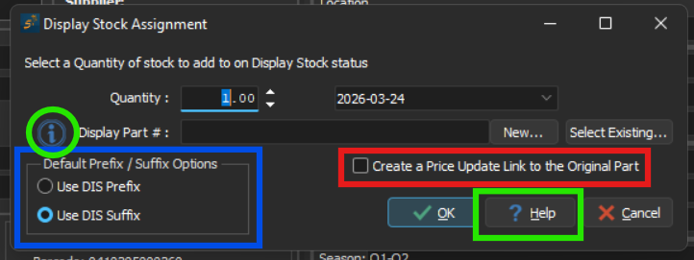
Figure 3: When creating the new display part, after selecting the category, the new display part number will be automatically populated based on the previously selected prefix/suffix workflow. Note: The value can be edited in the event either recommended workflow is not sufficient.
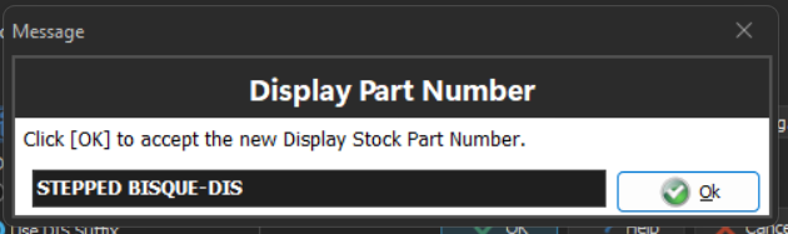
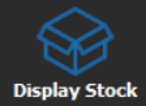
Figure 4: The Display Stock Button will change colors based on the state of the item. If the item does not have associated display stock it will be blue. If the item has display stock associated it will be orange. If the item is the display stock item it will be green. These indicators will help you keep tabs on which item you are using, and what to update.
 |  |  |
Key Benefits
The display stock tracking feature in System Five™ offers several significant advantages for business owners seeking to manage their display inventory more effectively.
High Visibility of Display Designation
Items marked as display stock are clearly identified throughout the system. This display designation ensures that all staff members are immediately aware of which items are on display, minimizing confusion and supporting accurate inventory management.
- Visible on Invoices: The display status is shown directly on invoices, making it easy for all departments to recognize display items immediately.
Separate Tracking and Analysis
Display stock can be individually tracked and analyzed within the system. This allows businesses to monitor the movement and status of display items independently from standard inventory, facilitating better reporting and decision-making.
Linked Pricing for Display and Regular Stock
If the Create a Price Update Link to the Original Part option is enabled, any price updates that occur will automatically apply to both the Parent Part and the corresponding Display Part. This feature ensures pricing consistency and reduces manual updates. The shared pricing values are:
- Cost
- List Price - If the price schedule for List is configured as a FIXED price ONLY! All other pricing methods work from the Cost.
- Wholesale
- Extra
- Freight
- Duty
NOTE: Keeping the Prefix/Suffix short allows for use with larger Parent Part numbers. The system supports part numbers up to 50 characters in length.
Changing the Price Link After Creation
You can turn the price link on or off at any time after the Display Part has been created. You are not locked into the choice you made when the Display Part was first set up.
To change the price link:
- Open either the Parent Part or the Display Part in Inventory Maintenance.
- Click the arrow on the Display Stock button to open its menu.
- Select the price link item. Its wording depends on which part you have open:
- On the Display Part: Update this Part's Prices from the Parent Part
- On the Parent Part: Update the Display Part's Prices from this Part
- A check mark beside the item shows that the link is currently on. Select the item to switch it off, or select it again to switch it back on.
- Confirm when prompted.

Figure 5: The Display Stock button menu, opened from a Parent Part. The check mark shows that the price link is currently switched on.
The Display Stock button tooltip also tells you the current state. It ends with either Prices are linked. or Prices are not linked.
When you switch the link ON
Prices are copied the next time the Parent Part's prices are changed. Prices already on the Display Part are left as they are — switching the link on does not immediately overwrite them.
When you switch the link OFF
The two parts stay linked for stock transfers, and the Display Part is still a Display Part. Prices already copied to the Display Part are left as they are and are not changed back.
NOTE: A change to the price link is saved immediately. The Cancel button on the Inventory record only discards changes to the inventory record itself — it does not undo a price link change.
Workflows
Using the Suffix Workflow
The Suffix Workflow creates new display part number, adding the Suffix to the Parent Part number (e.g., <part number>-DIS). This approach ensures that when searching for the part number in System Five™, both the regular stock item and the corresponding display stock item appear in the results. However, since users must choose between the regular stock item and the display stock item, this process may cause a slight delay when generating invoices.

Using the Prefix Workflow
The Prefix Workflow creates new display part numbers, adding the Prefix to the existing part number. (e.g., DIS-<part number>). With this method, searching for the part number in System Five™ returns only the regular stock item. However, searching by Prefix allows users to locate all display stock items efficiently. It is important to note that this will affect how part numbers sort in reports. This potential issue can be addressed by sorting results by supplier or supplier part number.

Setup Requirements
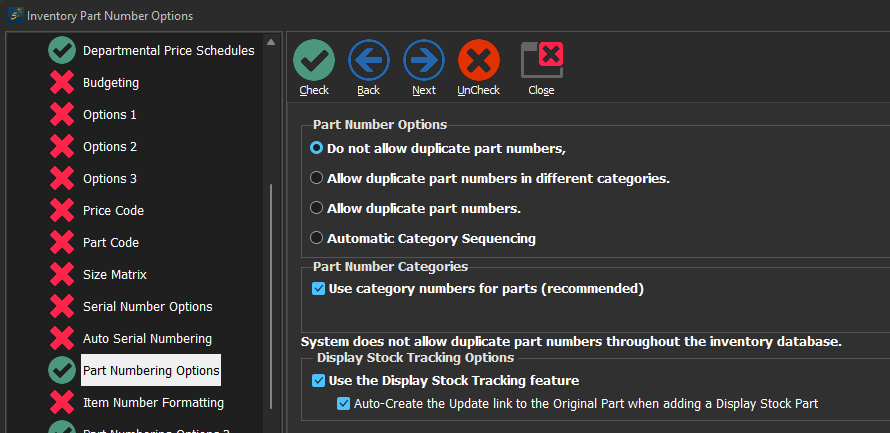
- You must enable the feature through the Setup Wizard.
- The setting is in the Setup Wizard:
- Inventory -> Part Numbering Options -> Use Display Stock Tracking
- The Auto-Create the Update link to the Original Part when adding a Display Stock Partoption sets the default value on the Display Stock Assignment dialog to be automatically selected on the dialog.
- Note: This can be overridden in the dialog, and changed again later from the Display Stock button menu.
- The setting is in the Setup Wizard:
- System Five Version: 8.0.1.x