Overview
Most computers and laptop can be configured with a second monitor. This can be used as a customer-facing pole display. Once configured, it has several benefits.
- It can show inventory pricing, quantities and even an image of the item being sold.
- You can also display a web page on the second monitor to help advertise to your customers when not in use.
How to configure a second monitor as a pole display
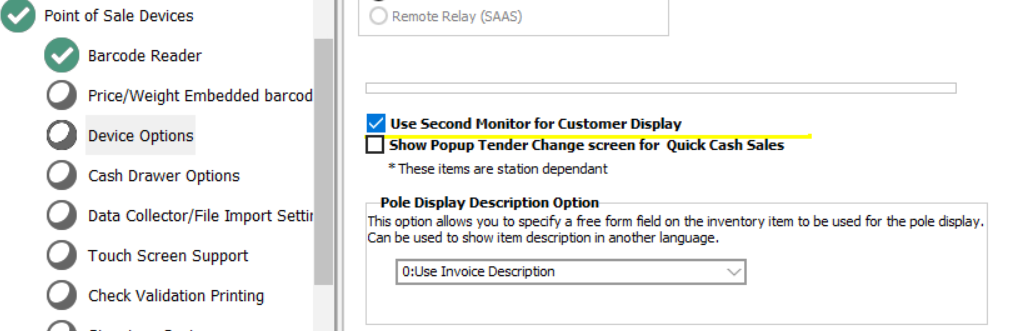
- Sign in to Windward System Five and navigate to Setup Wizard.
- Choose "Point of Sale Devices"
- Select "Device Options."
- Check the option "Use Second Monitor for Customer Display."
- The second monitor display will open when making your next invoice.
Configuration of display
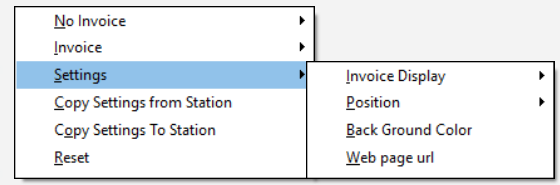
You will need to create an invoice to open the white pole display screen. Once it is active on your second monitor, you can right-click on the display to access a list of options for configuring the layout and content displayed..
Configuration to show a Webpage
You can market to your customers during and after a sale. Configure the pole display to show a web page with your specials, sales or upcoming events.
- Right-click on the second monitor window and choose "Settings".
- Select "Web page url" and enter in a static HTML page on your network.
- Right-click on the second monitor window and choose "No Invoice".
- Choose "Show Webpage Full Screen" if you want to display it when no sale is in progress.
- Right-click on the second monitor window and choose "Invoice".
- Choose "Show Web page"