Based on the current article content, I would rewrite it as follows to improve readability while keeping all required Google steps intact. The process itself has not changed; the presentation is simplified and organized into clearer sections.
How to Create a System Five App Password for Gmail Users
Overview
If you receive a**"Password Incorrect"** error when sending email through Gmail using System Five Email Directly, you may need to create a Google App Password.
An App Password is a 16-character password generated by Google that allows System Five to send email without using your regular Gmail password.
Before You Start
Google requires 2-Step Verification (2FA) to be enabled before App Passwords can be created.
✅ Ensure you have:
- Access to the Gmail account
- Permission to modify Google Account security settings
- 2-Step Verification enabled
Quick Summary
- Enable Google 2-Step Verification (if not already enabled).
- Generate a Gmail App Password.
- Enter the App Password into System Five Email Directly settings.
- Test sending an email.
Step 1: Generate a Gmail App Password
- Sign in to your Google account.
- Open the Google App Passwords page.
- If prompted, complete the sign-in process.
- Select an app from the dropdown menu or choose Other and enter a custom name such as System Five.
- Select a device from the dropdown menu or choose Other and enter a custom device name.
- Click Generate.
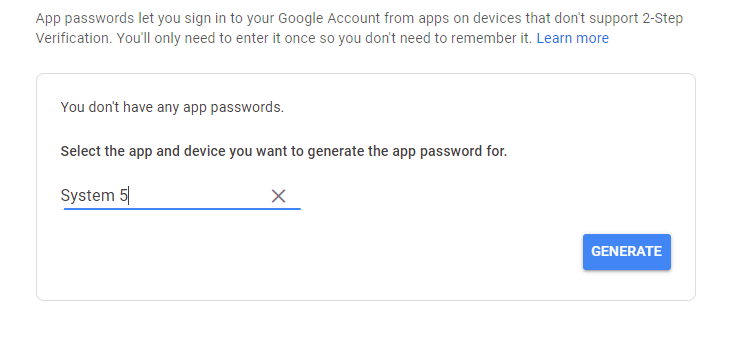
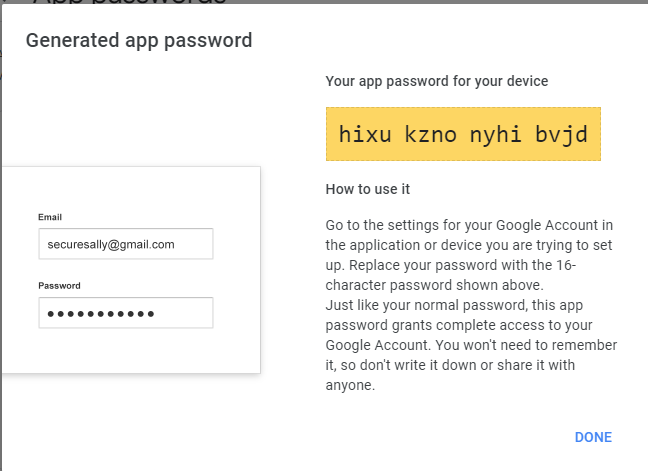
- Google will display a 16-character App Password.
- Copy the App Password and save it temporarily.
- Click Done.
Important
Google only displays the App Password once. If it is lost, a new App Password must be generated.
Step 2: Allow Access to Your Google Account
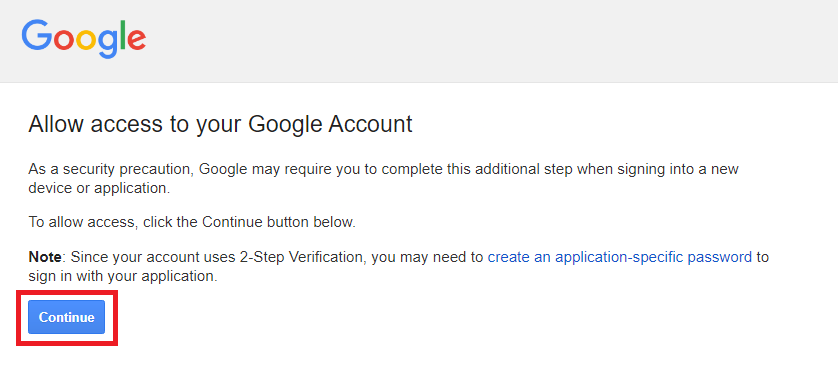
In some cases, Google may block sign-in attempts from a newly configured application.
- Visit Google's Display Unlock Captcha page.
- Click Continue.
- Complete any verification prompts that appear.
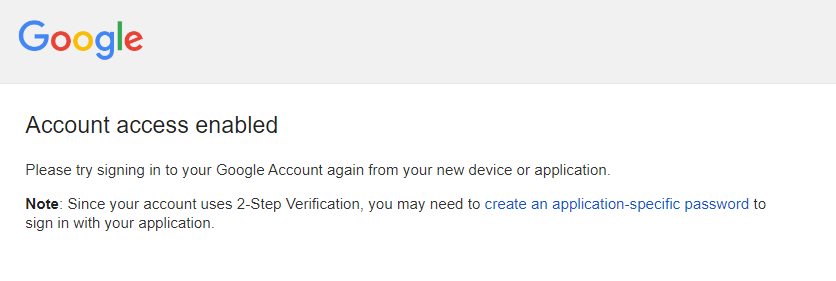
- Confirm that the message**"Account Access Enabled"** is displayed.
Step 3: Configure System Five Email Directly
Open System Five Email Setup and configure the settings as follows:
| Setting | Value |
|---|---|
| Email Option | Email Directly |
| Real Name | User's Name |
| Return Address | Full Gmail Address |
| Incoming Mail Server | pop.gmail.com:995 |
| Login Name | Full Gmail Address |
| Outgoing SMTP Server | smtp.gmail.com:587 |
| Password | Gmail App Password |
| Confirm Password | Gmail App Password |
| Use SMTP Authentication | Enabled |
| Use SSL | Enabled |
Gmail supports SMTP ports 465 and 587, with 587 recommended in this configuration. 
Troubleshooting
"The setting that you are looking for is not available for your account"
This typically indicates that 2-Step Verification is not enabled on the Google account. Enable 2-Step Verification and then return to the App Passwords page.
"Password Incorrect" Error Persists
Verify that:
- The App Password was entered correctly.
- SMTP Authentication is enabled.
- SSL is enabled.
- The full Gmail address is entered as the Login Name.
- Google account access has been enabled using the additional verification step above.